Search and Bookmark
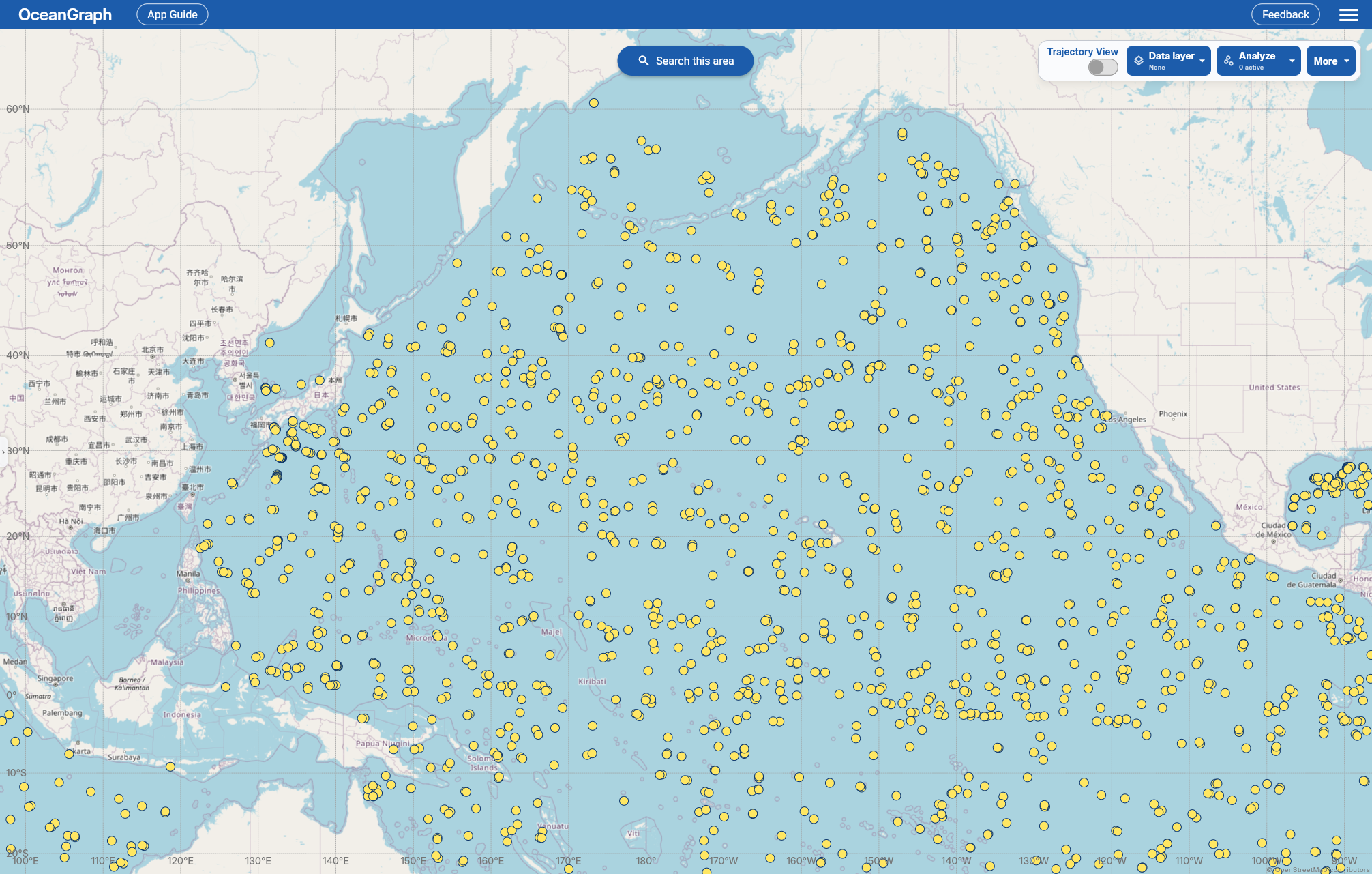
Search Methods
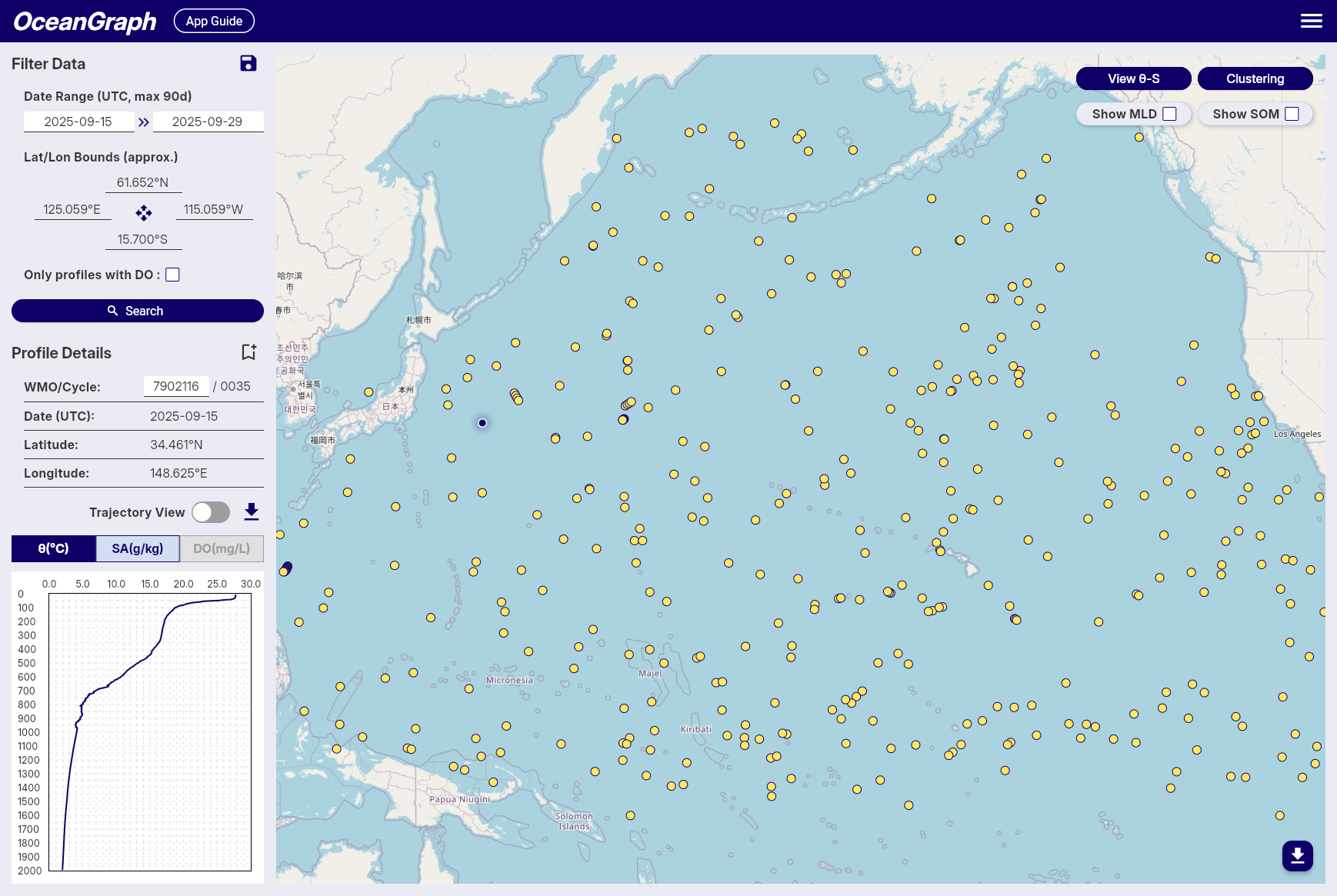
Control Panel
With the control panel hidden, Search this area searches the visible map area using the current filters. On narrower layouts, signed-in commands are grouped under Tools.
Filter Data Panel
Search dates run from October 1999 to the present, in UTC. The maximum date range is 30 days anonymously or 90 days when signed in. The map sets the geographic bounds.
Only profiles with BGC includes profiles with at least one supported BGC parameter: dissolved oxygen, chlorophyll, nitrate, backscattering, pH, downwelling irradiance at 490 nm, or PAR. Irradiance at 490 nm is searchable and downloadable but has no in-app chart.
Profile Details Panel
A WMO ID search loads all profiles for that float. Signed-in users can download the selected profile’s data from this panel.
Using Bookmarks
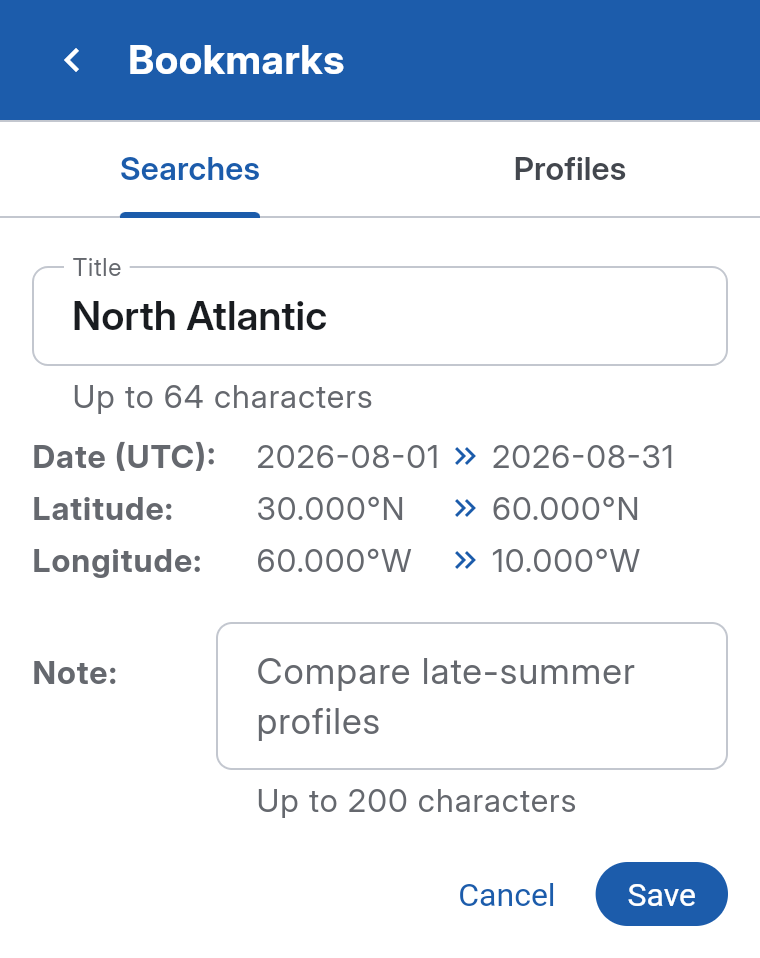
Signed-in users can save up to 10 searches and 10 profiles with Bookmark search and Bookmark profile. Search bookmarks store filters; profile bookmarks store a float and cycle.
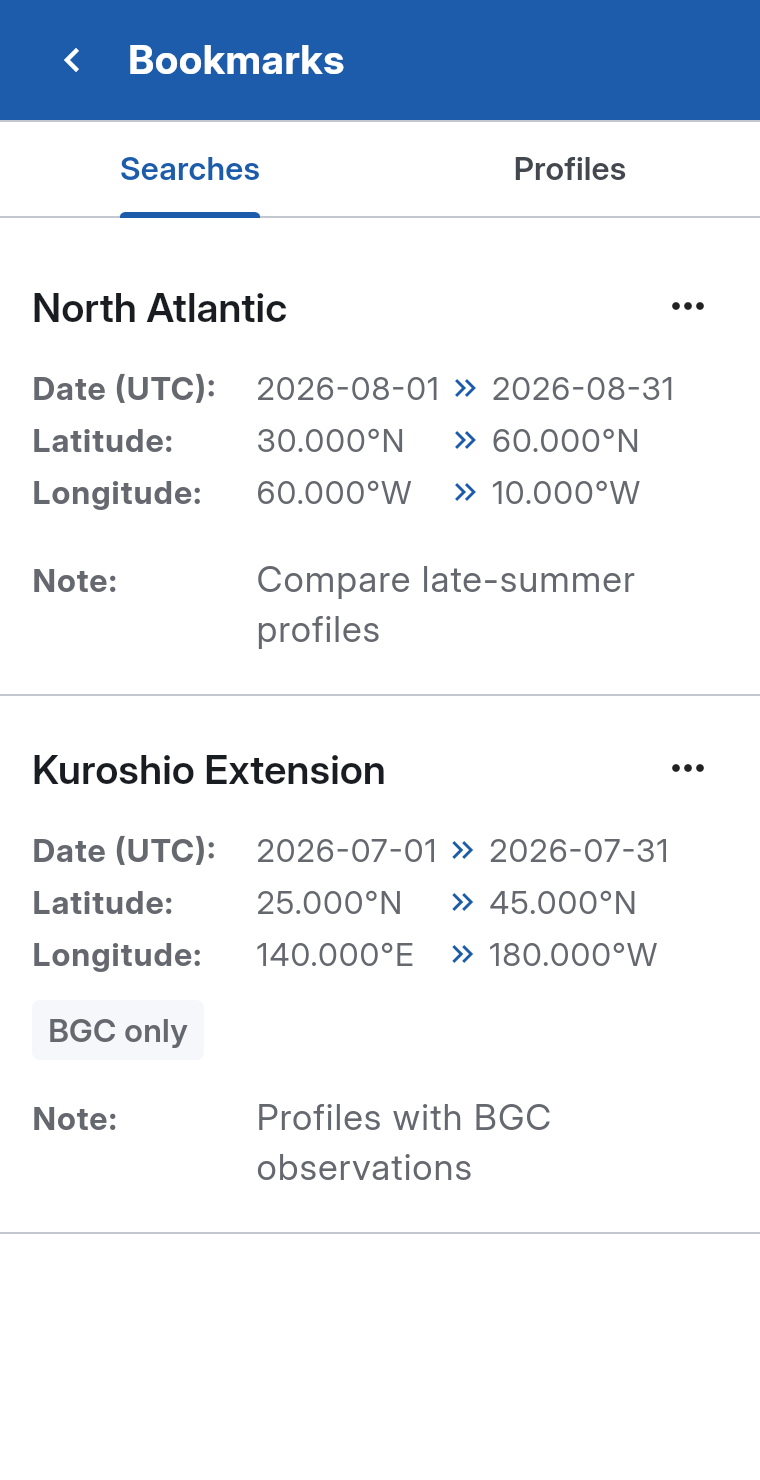
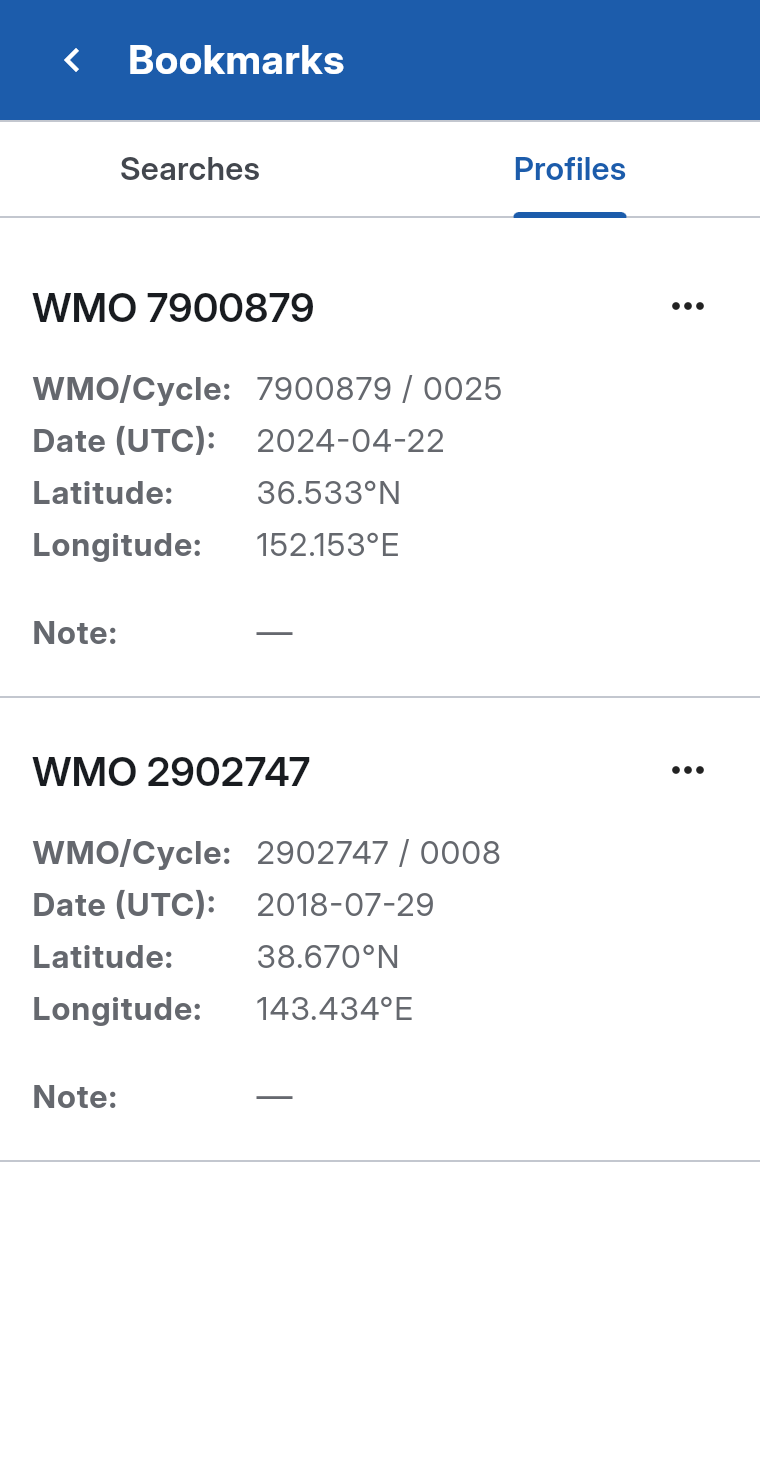
Reopen saved items from Menu > Bookmarks.
Titles allow up to 64 characters and notes up to 200.
Results and Analysis Limits
θ–S Diagram and Clustering accept up to 500 profiles. For a larger search, the corresponding Analysis item shows the current count and remains disabled; OceanGraph does not sample or split oversized inputs. Requests are also rate-limited; signing in does not increase an endpoint’s request limit.
For 3D View, the 500-profile limit applies to the selected rectangle, so a larger loaded set can still be narrowed on the map.
Related Reading
For guidance on choosing between regional, date-based, WMO ID, and BGC searches, read Finding Argo Float Profiles by Location, Time, and WMO ID in OceanGraph Articles.