Finding Argo Float Profiles by Location, Time, and WMO ID
When people first work with Argo float data, one of the hardest steps is not reading the profile. It is finding the right profile in the first place.
Sometimes the question is regional: you want all profiles in one area during one season. Sometimes it is platform-centered: you already know a float’s WMO ID and want to follow that float across multiple cycles. Sometimes it is variable-centered: you need only profiles that include dissolved oxygen.
This guide explains the practical logic of finding Argo float profiles. It covers the difference between floats and profiles, when to search by location or by WMO ID, common mistakes, and how to explore results in OceanGraph before downloading files.
If you are completely new to the Argo system itself, start with What is Argo Float? A Complete Guide to Ocean Observation Data.
Why Finding the Right Profile Is Harder Than It Sounds
Argo is a global observing system, which means the data is rich but also easy to search in the wrong way.
Beginners often know the scientific question they care about, but not yet the search unit that matches it.
Typical starting questions sound like this:
- I want profiles from one ocean region during one month
- I want to track one float over time
- I want only profiles that include oxygen
- I want to compare several nearby profiles before coding
Those are good questions, but they point to different search strategies. The most useful first step is to decide whether you are trying to find:
- A set of profiles from a region and time window
- A single float identified by WMO ID
- A subset of profiles with a particular variable such as dissolved oxygen
Once that is clear, searching becomes much easier.
Start with the Search Units: Float, Profile, Cycle, and WMO ID
Before searching, it helps to keep four terms separate.
| Term | What it means | Why it matters for search |
|---|---|---|
| Float | The physical Argo instrument drifting and profiling over time | One float can produce many profiles |
| Profile | One vertical observation through the water column | This is usually the actual unit you compare |
| Cycle | One sampling event in the float’s sequence | Helps place the profile in time order |
| WMO ID | The identifier assigned to a float | Useful when you already know which float you want |
The key practical point is this: searching by WMO ID does not usually return one profile. It returns the sequence of profiles from one float.
That distinction matters because many beginners search for a float when they are really trying to find one profile, or they search for a region when they actually want the repeated history of one known float.
If you want a broader explanation of how these pieces fit together, How to Read Argo Float Data for Beginners (What to Look at First) is a good next step.
Three Practical Ways to Search Argo Data
Most Argo searches fall into three patterns.
1. Search by location and date when the question is regional
Use a geographic search when your question begins with a place or season.
Examples:
- What profiles are available in the subtropical North Pacific this month?
- Are there profiles near a frontal region during winter?
- What does the water column look like in this basin during a given period?
This type of search is best when you do not care which float collected the data yet. You care first about where and when.
In OceanGraph, this means starting with:
- A date range
- Geographic bounds set on the map
- The result markers that show which profiles match
The search workflow is documented here:
One useful habit is to start with a window that is broad enough to show what is available, then narrow after you see the result distribution.
2. Search by WMO ID when you want one float’s history
Use a WMO search when you already know the float identifier and want direct access to its observation sequence.
This is useful when you want to:
- Follow one float across many cycles
- Compare early and late observations from the same platform
- Revisit a float cited in a paper, class, or discussion
- Move quickly from a known ID to profile details
WMO search is efficient because it removes the uncertainty of regional browsing. Instead of asking “what is in this area?” you ask “show me this float.”
That is often the fastest route into:
- Cycle-by-cycle comparison
- Trajectory interpretation
- Time-series vertical sections
3. Filter for BGC data when the question is biogeochemical
Not every Argo profile includes the same variables.
If your question is about biogeochemical measurements, you should not start with all profiles and inspect them one by one. It is better to filter for profiles that include BGC data first.
OceanGraph includes an Only profiles with BGC option in the search panel. It returns profiles that include at least one supported BGC parameter, such as dissolved oxygen, chlorophyll, nitrate, backscattering, pH, downwelling irradiance at 490 nm, or PAR. That is useful when you want to:
- Focus on BGC-related profiles
- Avoid wasting time on core-only floats
- Find profiles that are more likely to contain the biogeochemical variable you need
If oxygen is your main goal, use the BGC filter first and then confirm that the selected profile includes dissolved oxygen. The natural next article is Dissolved Oxygen Profiles in BGC Argo Explained.
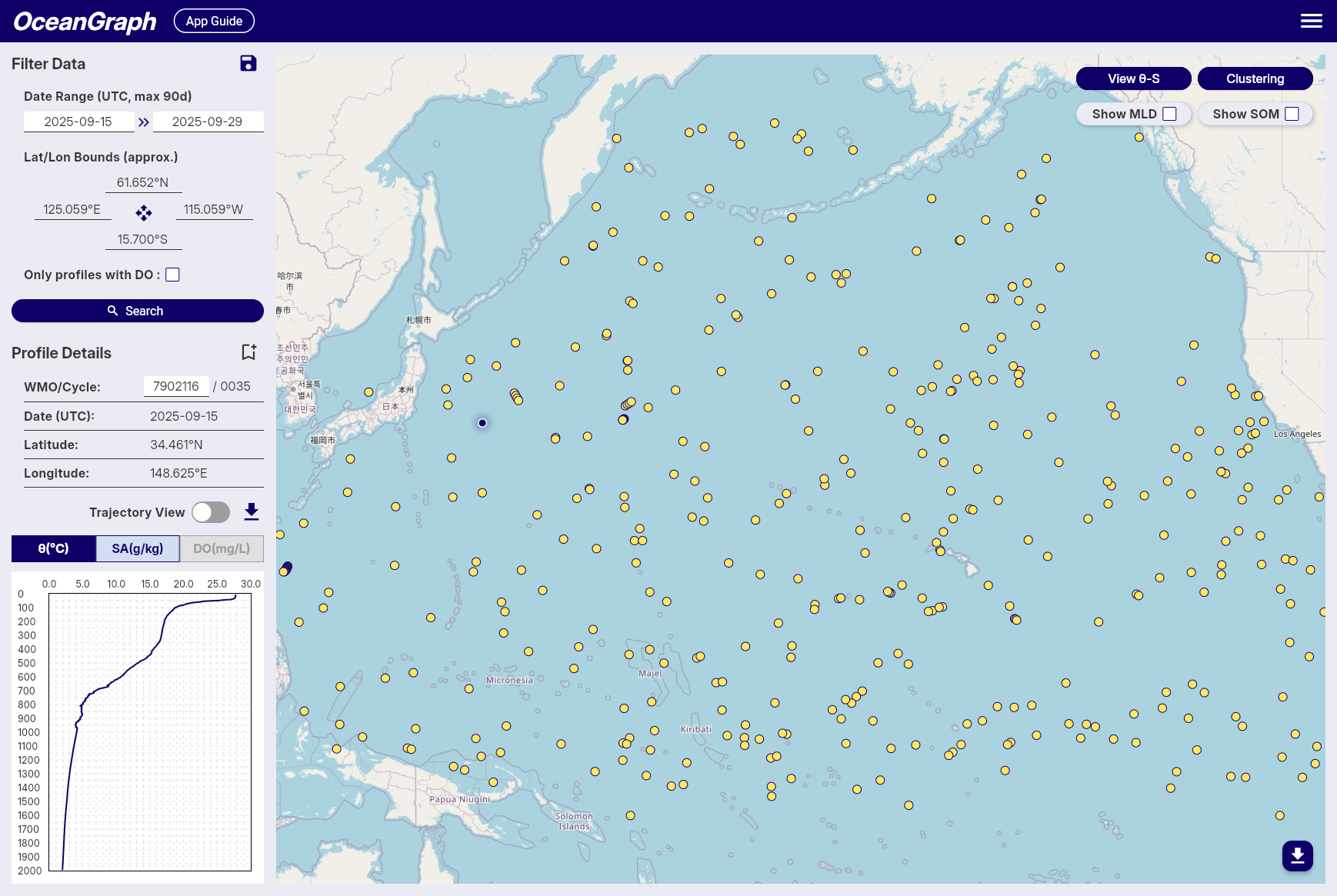
A Simple Workflow for Finding Useful Profiles
A practical beginner workflow looks like this:
- Start with a geographic area and date window if the question is regional.
- Look at the result markers before deciding which profile matters.
- Open profile details and inspect the WMO ID, cycle number, date, latitude, and longitude.
- Switch to WMO ID search if one float becomes especially relevant.
- Add the BGC filter if the question is biogeochemical.
- Save the search or bookmark key profiles if you are signed in.
This order is useful because it keeps the search tied to scientific context.
A few details are easy to overlook:
- OceanGraph shows profile dates in UTC
- WMO search returns all profiles for that float
- Saved searches and bookmarked profiles are available to signed-in users
Once you have found good candidates, the next step is usually not another search. It is reading the actual profile or comparing several of them. Visualizing Argo Float Data Without Python (Step-by-Step Guide) covers that workflow.
What People Often Get Wrong
A few search mistakes come up repeatedly.
Searching too narrowly too early
If you start with a very small region and a very short time window, you may conclude that “there is no data” when the real problem is only that the search was too restrictive.
A broader first pass helps you understand the data density before you narrow to a specific case.
Confusing float selection with profile selection
A float is not the same thing as a profile.
If you search by WMO ID, you are usually asking for an observation history, not one single measurement. You still need to decide which cycle or profile is relevant to your question.
Ignoring time context
Two profiles from the same place can mean different things if they were measured in different seasons or years.
That is why date is not just metadata. It is part of the interpretation.
Forgetting variable availability
Many learners search widely, then realize too late that the matched profiles do not contain the variable they actually need.
If the question involves oxygen or another BGC variable, use the BGC filter from the beginning, then confirm the specific variable in the selected profile.
The Traditional Workflow: Catalogs, File Names, Then Manual Checking
A common Argo workflow looks like this:
- Browse catalogs or download files from a data portal
- Open file names or metadata records
- Check which float or cycle each record represents
- Inspect whether the target variable is present
- Download several candidates
- Open them locally before deciding which ones are worth plotting
That workflow is valid, but it can be slow when your immediate problem is simply finding the right profiles.
The friction is even higher if you are also new to NetCDF structure. If that is your current barrier, Argo NetCDF Format Explained for Beginners can help.
A Better First Step: Search Interactively Before You Download
If your goal is to identify useful profiles quickly, interactive search is usually the better first step.
OceanGraph helps because it keeps the discovery workflow simple:
- Search by region and date
- Enter a WMO ID for direct access to one float
- Filter for BGC data when needed
- Inspect WMO ID, cycle number, date, and location together
- Save searches or bookmark profiles for later review
That means you can answer the practical question first: which profiles are actually worth my attention?
Then, once the interesting profiles are clear, you can move on to:
- How to Read Argo Float Data for Beginners (What to Look at First)
- Ocean Temperature and Salinity Profiles Explained
- Visualizing Argo Float Data Without Python (Step-by-Step Guide)
Find Real Argo Profiles in OceanGraph
If you want to move from vague profile hunting to a clear search workflow, OceanGraph is the direct next step.
Try with real Argo data -> OceanGraph
Explore profiles interactively
OceanGraph makes it easier to search by place, time, WMO ID, and BGC data availability before you commit to a heavier workflow.
Frequently Asked Questions
What is a WMO ID in Argo data?
It is the identifier for a specific Argo float. Searching by WMO ID is the fastest way to retrieve the sequence of profiles from one known float.
Should I search by float or by profile?
Search by float when you want the observation history of one platform. Search by region and date when you first need to discover which profiles are available.
Can I search only for BGC profiles?
Yes. OceanGraph includes a BGC filter so you can restrict the results to profiles that include at least one supported BGC parameter. It is not a DO-only filter, so confirm whether a selected profile includes dissolved oxygen when oxygen is required.
Why did my regional search return very few profiles?
The most common reasons are that the time window is too short, the region is too small, or the target variable filter is too restrictive.
Do I need to download NetCDF files before I can search effectively?
No. It is often better to identify useful profiles first, then decide which files are worth deeper analysis later.
Conclusion
Finding Argo float profiles becomes much easier once you separate regional search, WMO-based search, and variable-based filtering. The hardest part for beginners is usually not the data itself. It is choosing the right search unit.
For many workflows, the fastest path is to search interactively first, identify the profiles that matter, and only then move to plotting or coding. That is where OceanGraph is most useful.